


Smart Devices Keep Dropping Offline? Here's the Australian Fix (Wi-Fi vs ZigBee vs Matter Explained)
If a smart sensor, globe or plug shows “offline” in your app every few days, the device usually isn't broken — your Wi-Fi network is struggling to hold it. This is an extremely common complaint in Australian homes, largely because NBN-supplied routers are optimised for a handful of high-bandwidth devices (laptops, phones, streaming boxes), not for holding 15 low-priority smart devices open on the 2.4GHz band simultaneously. Here's how to actually fix it, and how to tell when a device should be switched to ZigBee or Matter over Thread instead of fighting the Wi-Fi network forever.
First, the one that catches almost everyone
Before anything else: smart home devices connect on 2.4GHz Wi-Fi only, never 5GHz. If your router broadcasts both bands under a single network name — which most Australian routers do by default — a device can fail to pair, or pair and then drop repeatedly as the router tries to move it to 5GHz.
If you are troubleshooting a device that never connected properly in the first place, this is almost certainly why. Split the bands temporarily in your router settings, pair the device, then continue with the fixes below.
What you will need
- Access to your router's admin settings (usually via a browser at 192.168.1.1, or the companion app for mesh systems and ISP-supplied routers)
- A list of how many smart devices are currently connected — check your router's connected devices page
- Optional: a ZigBee hub, if you decide to migrate persistently unstable devices off Wi-Fi entirely
Step 1: Diagnose the actual cause
Before changing anything, identify which of these is happening:
- Channel congestion: Common in units and dense suburbs where dozens of neighbouring 2.4GHz networks overlap on the same channel. Use a Wi-Fi analyser app on your phone to check how many other networks share your current channel.
- Band steering conflicts: Many routers try to push devices onto 5GHz for better speed, but smart home devices only support 2.4GHz and can get stuck in a connect/reconnect loop when the router keeps attempting to steer them.
- Device count overload: Routers (especially older or budget models) have a practical limit on simultaneous 2.4GHz connections — often lower than their spec sheet suggests once you account for real-world interference.
- Distance and interference: Smart devices are often installed behind furniture, inside cupboards, or near microwaves and baby monitors, all of which degrade 2.4GHz signal specifically.
Step 2: Set up a dedicated IoT network
Most modern routers and mesh systems support creating a second SSID (network name) specifically for smart devices. This isolates your low-priority smart devices from your laptop and streaming traffic, and lets you apply different settings without affecting your main network. Look for Guest Network or IoT Network in your router's app, name it something like “HomeIoT”, and reconnect your smart devices to it instead of your main Wi-Fi.
Step 3: Fix the channel width and disable band steering
In your router's advanced Wi-Fi settings, locate the 2.4GHz band configuration and set the channel width to 20MHz (rather than the default 20/40MHz auto setting) — this reduces speed slightly but dramatically improves stability in congested areas, which matters far more for smart devices than raw throughput. If your router has a Smart Connect or band steering toggle that merges 2.4GHz and 5GHz into one SSID, disable it for your IoT network, or split it into separate SSIDs so 2.4GHz-only devices always land on the right band.
Step 4: Manually set a fixed channel
Auto channel selection sounds convenient but often causes routers to hop channels periodically, which can briefly drop smart device connections. In apartment blocks or dense suburbs, manually set your 2.4GHz channel to 1, 6, or 11 (the three non-overlapping channels) based on whichever a Wi-Fi analyser app shows as least congested in your area, rather than leaving it on auto.
Step 5: Decide when to stop fighting Wi-Fi and switch protocols
If a device still drops out after applying the fixes above, it's often a sign that particular device — or that room — is better served by a different protocol entirely:
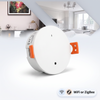
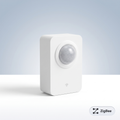
- Switch to ZigBee if you already have (or are willing to buy) a ZigBee hub and the device has a ZigBee equivalent available. ZigBee's mesh network actually gets more reliable as you add devices — the opposite of Wi-Fi. Many of our sensors come in both Wi-Fi and ZigBee versions for exactly this reason.
- Switch to Matter over Thread if you own an Apple TV 4K, HomePod, or a Nest Hub that acts as a Thread border router. Thread devices form their own low-power mesh, independent of your Wi-Fi congestion entirely.
- Keep it on Wi-Fi if it's an isolated, one-off device and you've already applied the fixes above. A single well-configured Wi-Fi device rarely has ongoing problems — it's specifically the 10th, 15th, or 20th device on a congested band that starts failing.
Australian considerations
Australian apartment buildings and inner-city suburbs tend to have some of the most congested 2.4GHz environments in the country simply due to density — expect more channel overlap than a standalone house on a larger block.
If you are replacing devices as part of this fix, it is worth knowing that devices manufactured from March 2026 onward for the Australian market fall under the Cyber Security (Security Standards for Smart Devices) Rules 2025, which require unique setup credentials rather than a shared default password. In practice that means being asked to set your own password during setup, rather than the device shipping with “admin/admin”.
Frequently Asked Questions
Why won't my device connect to Wi-Fi at all?
Almost always because it's being offered 5GHz. Smart home devices use 2.4GHz only. Split the bands temporarily in your router, pair the device, then merge them back.
Why do devices go offline overnight?
Often caused by routers switching Wi-Fi channels during overnight maintenance, or ISP-side NBN router reboots. Setting a fixed 2.4GHz channel usually resolves it.
Should I put smart devices on a guest network?
A dedicated IoT SSID (separate from your guest network) is best practice — it isolates smart device traffic and lets you apply IoT-specific settings.
How many Wi-Fi devices is too many?
Instability typically starts between 15–25 simultaneous 2.4GHz devices. Beyond that, migrate new devices to ZigBee or Matter over Thread.
Is a ZigBee hub worth buying just for this?
With more than five devices dropping out, usually yes. One hub supports dozens of ZigBee devices and takes them off your Wi-Fi entirely, so the problem stops growing.
Considering a permanent switch?
Read our ZigBee vs Matter vs Wi-Fi guide to decide which protocol suits your home.
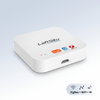
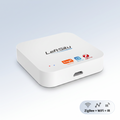
Browse PureNode's ZigBee hubs and gateways and sensors — many sensors come in both Wi-Fi and ZigBee versions, and every product page states which protocol it uses and whether a hub is required.
Products in this guide
The devices mentioned above, in stock and shipped free Australia-wide.
Not sure where to start?
Browse our under-A$100 picks — the essentials most people start their smart home with.