


Voice Control Everything: Setting Up Google Home or Amazon Alexa in Your Australian Home
Voice control removes the last remaining friction from smart home living. Instead of opening an app to dim the lights before a movie, you say “Hey Google, movie time” and everything adjusts at once. This guide covers setup from scratch — choosing your ecosystem, placing your hub, pairing devices, and creating routines that actually save you time.
Google Home vs Amazon Alexa vs Apple Home: which is right for you?
Google Home works best if you use Android phones, have a Google account, or want the most natural conversational voice responses. Google Assistant understands complex multi-step requests well.
Amazon Alexa has the deepest routine customisation, the largest third-party skill library, and works best if you are heavy Amazon shoppers. Echo speakers offer excellent audio quality at various price points.
Apple Home is the right choice if your household is on iPhones and Macs. All automation runs locally on an Apple TV or HomePod acting as a hub — no cloud dependency, better privacy, and it keeps working when the internet drops.
Matter is the unifying standard that lets one device work across all three platforms. If a device is Matter-certified, buy it without worrying about ecosystem lock-in.
Where Tuya / Smart Life fits in — and why you have probably never heard of it
This trips up almost everyone new to smart home, so it is worth explaining clearly.
Google Home, Alexa and Apple Home are the voice assistants — the thing you talk to. But most affordable smart devices are not made by Google, Amazon or Apple. They are built on a platform called Tuya, and set up through a free app called Smart Life (sometimes branded “Tuya Smart” — the two apps are near-identical and either will work).
The sequence is always the same:
- Pair the device once in the Smart Life app — this is where it joins your Wi-Fi and gets its name
- Link Smart Life to Google Home, Alexa or Apple Home — a one-time connection, done in the assistant's app
- From then on, control the device with your voice, or from either app
You are not choosing between Smart Life and Google Home — you use both, and after setup you can largely ignore Smart Life unless you want the more advanced automation settings. The upside is that one free app runs devices from dozens of manufacturers, instead of a separate app per brand.
Every PureNode device works this way, and each product page lists which assistants it connects to.
What you will need
- A hub/speaker: Google Nest Hub, Google Nest Mini, Amazon Echo, Amazon Echo Dot, or Apple HomePod
- A 2.4GHz Wi-Fi network — most smart devices connect on 2.4GHz only, not 5GHz
- A smartphone with the Google Home, Amazon Alexa, or Apple Home app installed — plus the free Smart Life app
- Compatible smart devices: smart globes, smart switches, sensors
Step 1: Place your hub in the right location
Your smart speaker or display is the brain of your setup. Place it centrally — a kitchen bench or living room shelf is ideal. It needs to hear you from anywhere in the open-plan area. For larger homes, add a secondary speaker in the bedroom. Google Home and Alexa both support whole-home audio groups, so you can say “Play music everywhere” and all speakers respond together.
Keep your hub at least 1 metre away from microwaves, baby monitors, and cordless phones, which can interfere with 2.4GHz Wi-Fi.
Step 2: Connect your smart devices
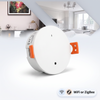
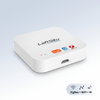
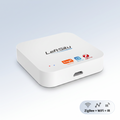
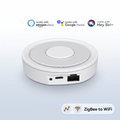
Wi-Fi devices pair directly in the Smart Life app, then link through to your assistant. ZigBee devices work slightly differently — they cannot reach your Wi-Fi on their own and need a ZigBee hub to bridge them onto your network. One hub covers dozens of ZigBee devices, so it is a single purchase rather than one per device.
Name devices clearly when pairing — “Lounge light” works better than “Bulb 1” when giving voice commands. Assign each device to a room in the app so you can say “Turn off the bedroom” to control everything in that room at once.
Step 3: Create your first routine
A routine is a voice command or scheduled trigger that runs multiple actions at once. Start simple:
- “Good morning”: Turn on kitchen lights 80%, start the news briefing, set climate to 22°C
- “Good night”: Turn off all lights, lock the front door, set heating/cooling to night mode
- “Movie time”: Dim lounge lights to 20%, close the blinds, turn on the TV via smart plug
In Google Home: Automations → Add → Voice command. In Alexa: Routines → + → Voice. In Apple Home: Automations → A Shortcut is Run (use Siri Shortcuts for custom phrases).
Step 4: Set up multi-room audio
If you have multiple Google or Alexa speakers, group them in the app. In Google Home: Add → Create speaker group. In Alexa: Devices → + → Combine speakers → Multi-room music. Once grouped, “Play jazz in the kitchen” or “Play music everywhere” works across all paired speakers.
Australian-specific notes
Buy your speakers and displays from Australian retailers so they arrive with the correct Type I plug and are built for our 240V/50Hz grid. Do not purchase US or UK variants — voltage adapters affect audio quality and may not be safe long-term.
Google Assistant and Alexa both support Australian English. Set your language to English (Australia) in the app settings to ensure natural Australian responses and correct spelling (kerb, not curb; colour, not color).
Frequently Asked Questions
What is Smart Life and do I have to use it?
Smart Life is the free app used to set up devices built on the Tuya platform — which covers most affordable smart home products. You pair the device in Smart Life once, then link it to Google Home, Alexa or Apple Home. After that, voice control works normally and you can mostly forget Smart Life is there.
Does Google Home work in Australia?
Yes — fully supported with Australian English, local services, and 240V power.
Why do smart devices only connect to 2.4GHz Wi-Fi?
2.4GHz travels further through walls and uses less power, which suits small battery devices. If your router combines both bands under one name, you may need to separate them temporarily while pairing.
Can Alexa and Google Home work together?
Not natively, but a device linked through Smart Life or certified for Matter connects to both at the same time.
Is there a subscription fee?
No — core smart home control is free on both platforms, and Smart Life is free too.
Ready to get started?
Browse PureNode's hubs and gateways, smart lighting, and sensors. Every product page lists which assistants the device works with, and whether it needs a hub.
Products in this guide
The devices mentioned above, in stock and shipped free Australia-wide.
Not sure where to start?
Browse our under-A$100 picks — the essentials most people start their smart home with.